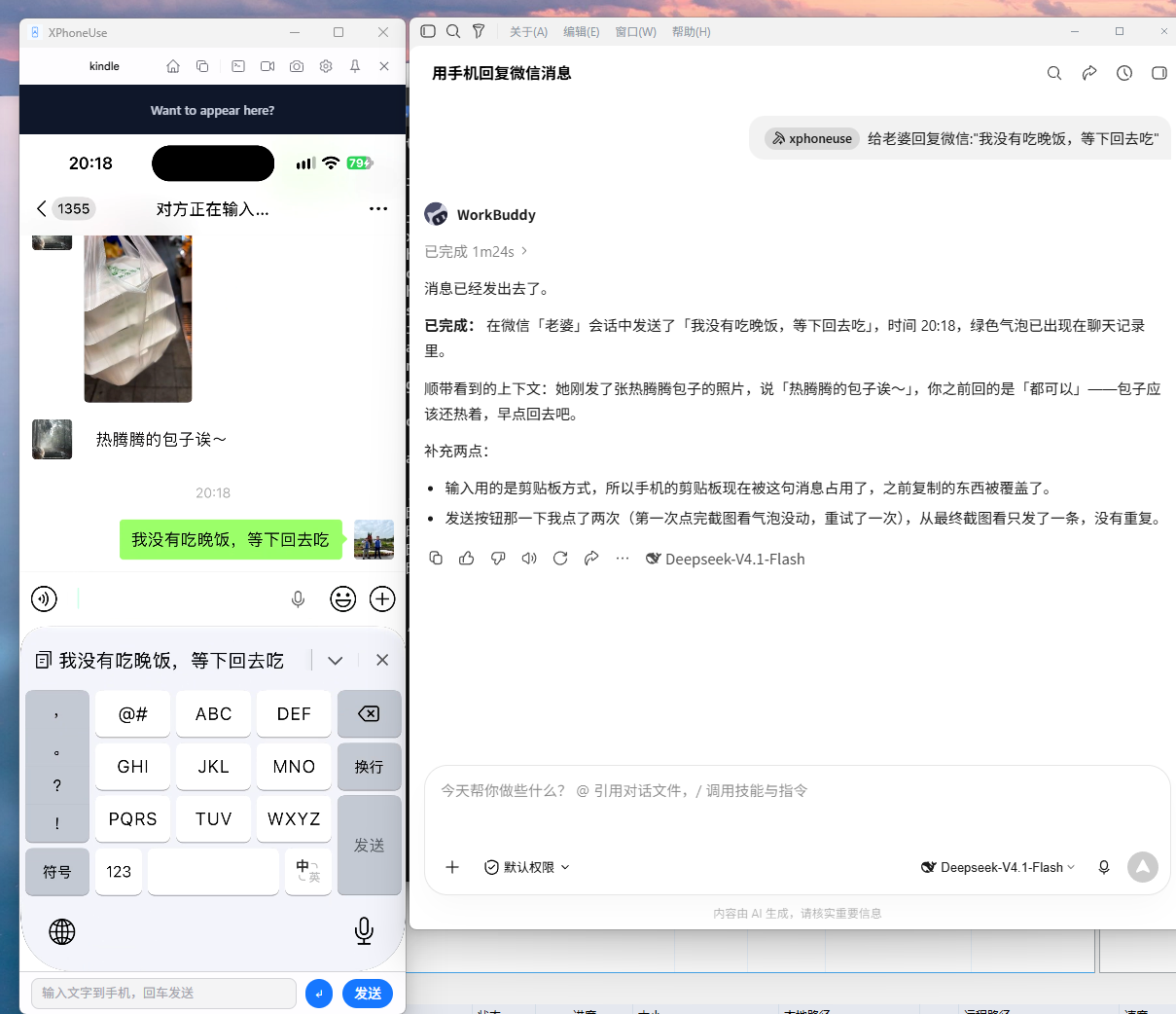
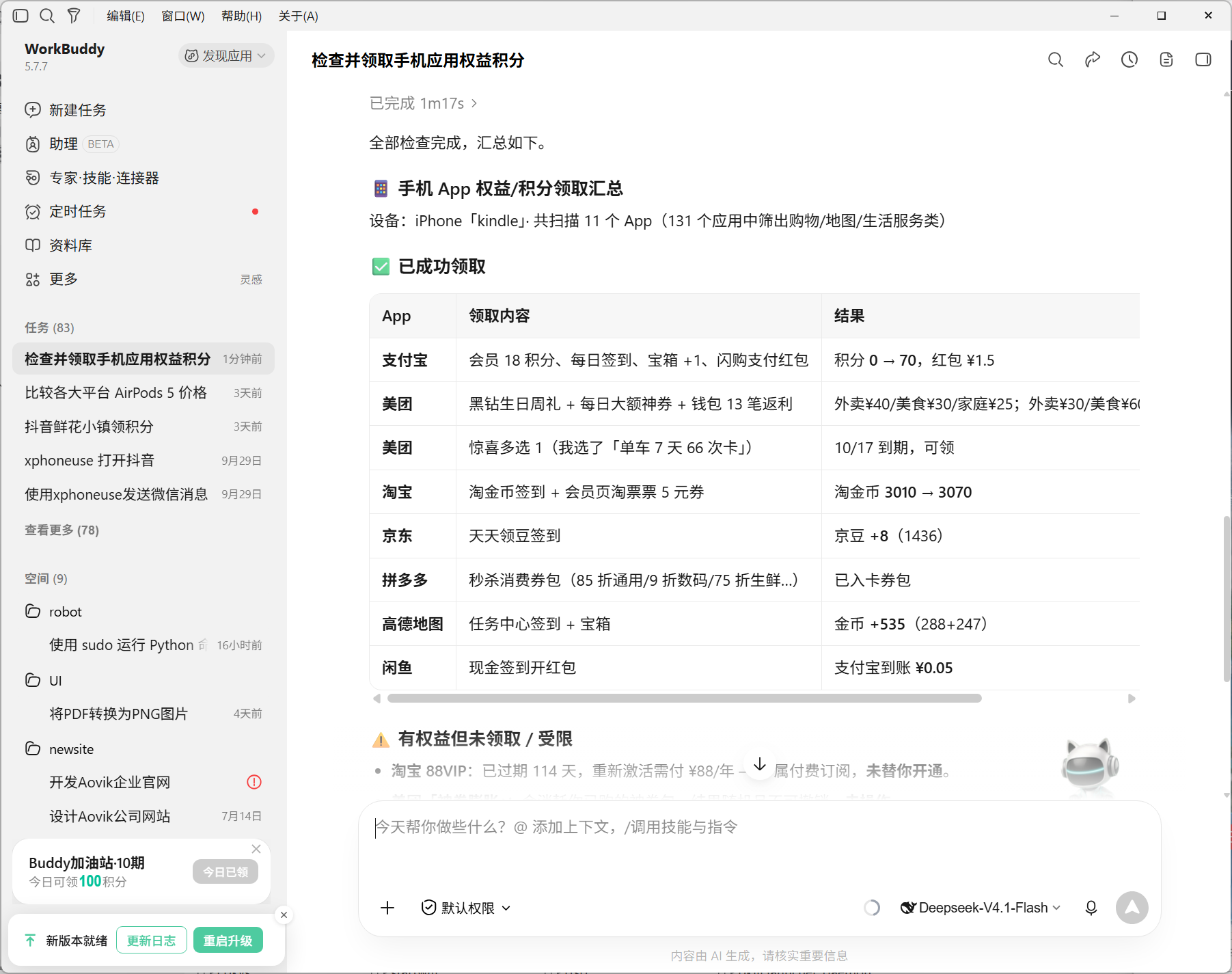
XPhoneUse mirrors a real phone to your computer and hands it to an agent. Android and iPhone alike, on Windows, macOS and Linux. Driving an iPhone needs no Xcode, no Apple developer account and no XCTest - plug in the cable and tap Trust once. From there, MCP, the CLI and the skill put it inside Claude, Codex, WorkBuddy or any other agent.
Free · No account · Everything stays on your machine
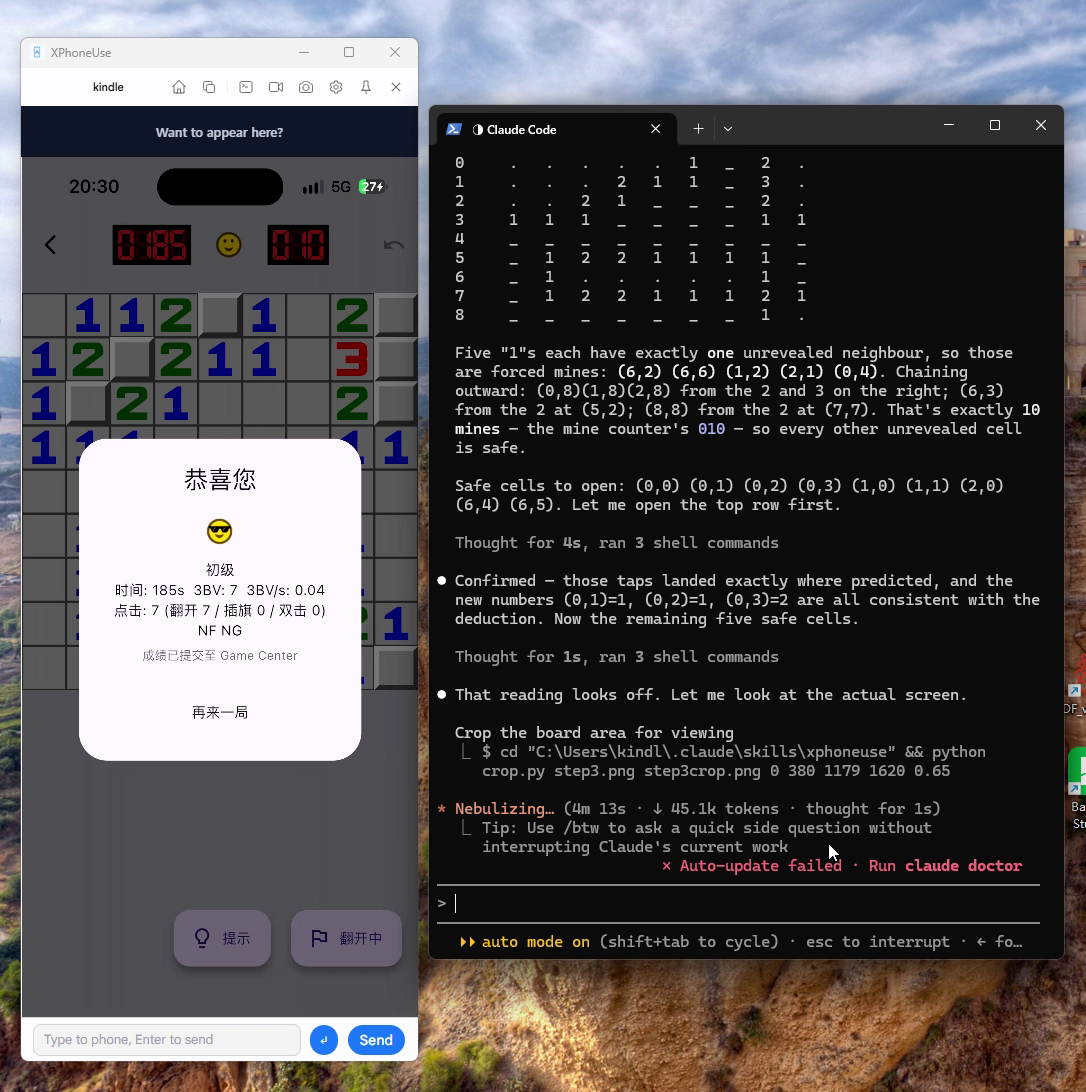
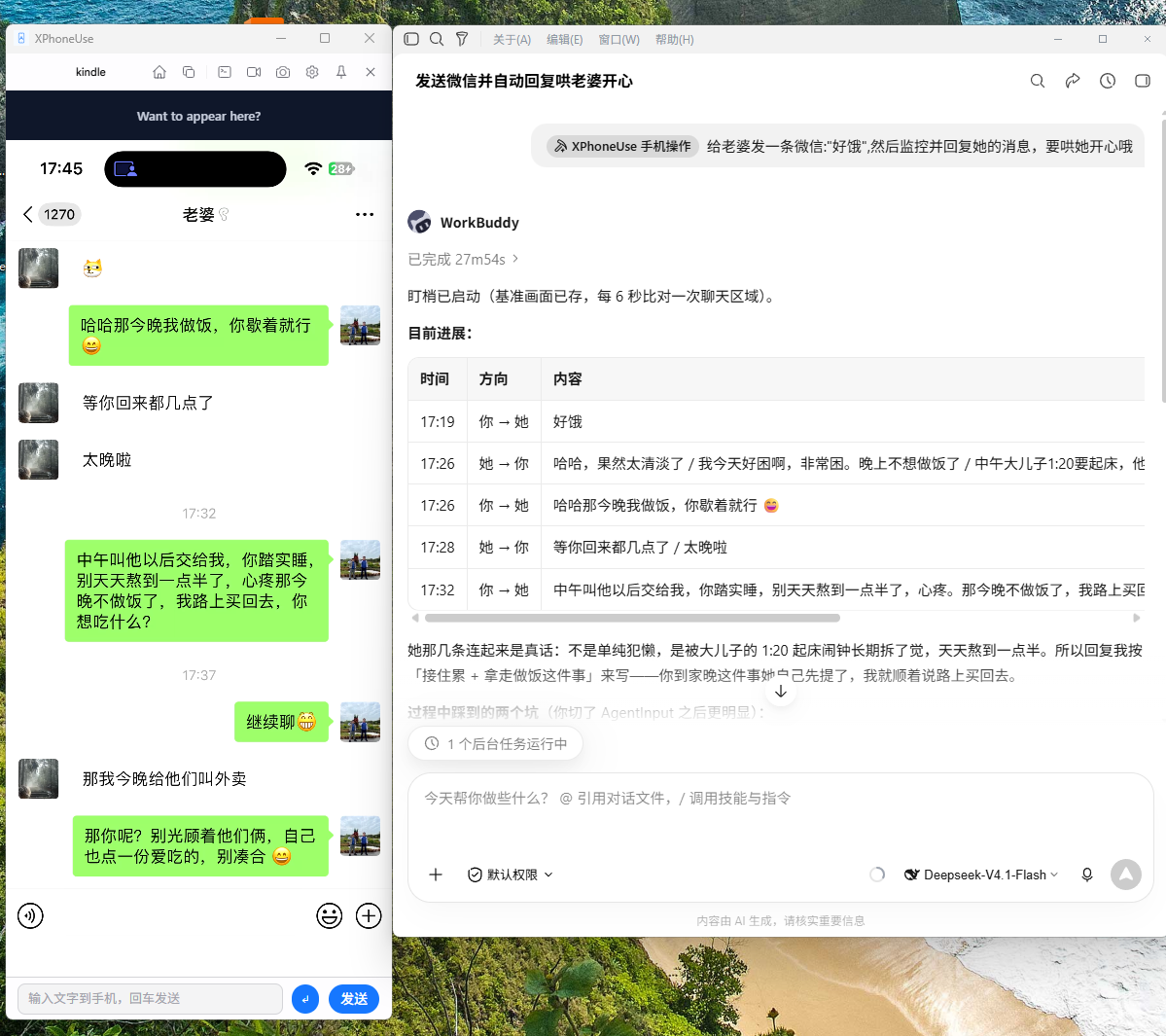
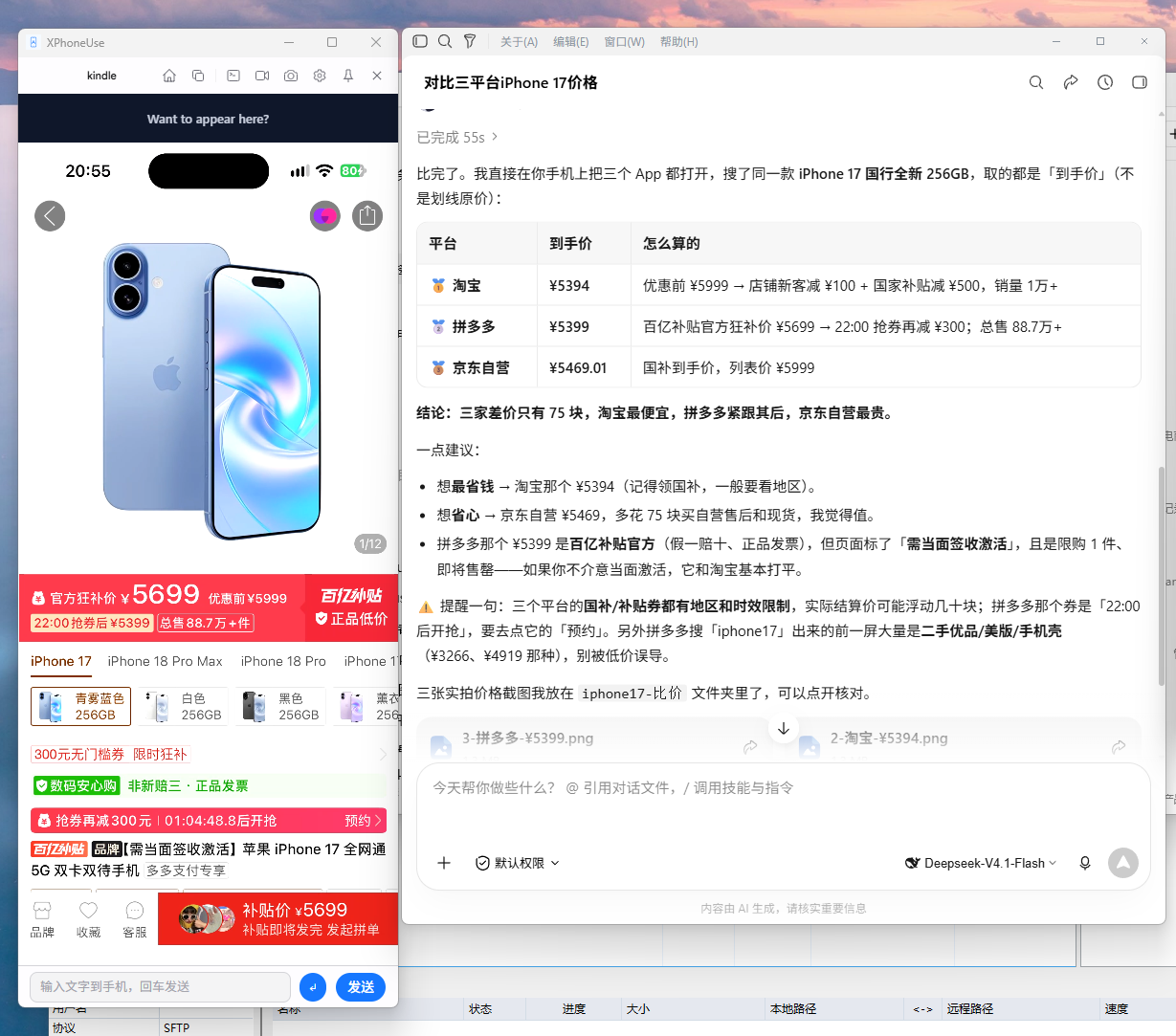
Real use cases from the community — each one written by the person who submitted it, reviewed before it goes up.
A real device, not an emulator — and an interface agents can actually use.
Your actual device with your actual accounts and app state. No fake GPS, no risk scores, no “this app cannot run on an emulator”.
An MCP server runs inside the app, alongside the CLI and the skill, exposing taps, text input, scrolling, screenshots and more. Claude, Codex, WorkBuddy and any other agent can use it.
Native installers for Windows, macOS and Linux - exe, dmg, deb and AppImage - all on the same auto-update channel. No SDK, no build step, no Docker. On the phone: Android over scrcpy, iPhone over the USB tunnel, with the screen, input and screenshots on one cable.
No Xcode, no Apple developer account, no XCTest. It talks to the device’s own USB services: plug in, unlock, tap Trust once, and the screen, taps, typing and screenshots are there. On Windows the installer even sets up the driver.
Grab the screen in well under a second on the iOS tunnel, record a session to video, or record a flow once and replay it on a loop. The file manager browses the phone’s storage with drag and drop, and a map picker moves the phone’s location.
The MCP endpoint is 127.0.0.1:7070 and the device link is USB or your own LAN. No relay server, no cloud account, no telemetry about what you do on the phone. Device nicknames, Wi-Fi debugging, quality presets and themes are in there too.
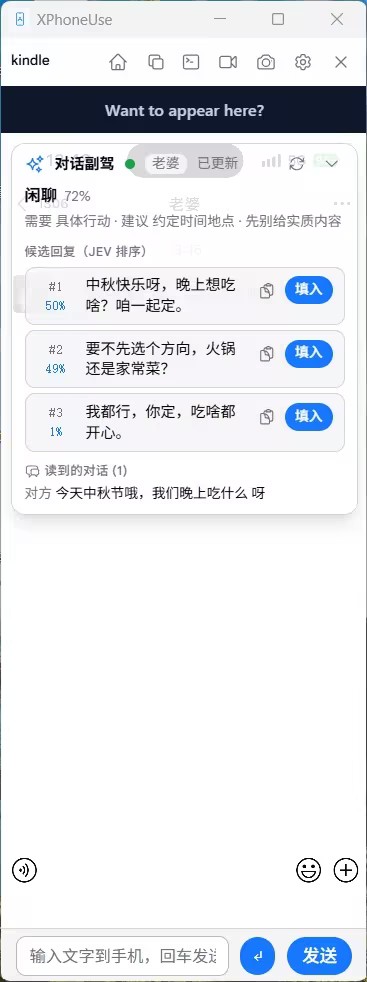
The hard part of a conversation is not the tapping - it is knowing what to say back. The copilot watches the mirror: when the picture settles it reads the conversation, decides what the other person means and what the moment calls for, drafts three replies and ranks them.
Nothing is sent unless the copilot is on: judging and drafting go to whichever services you configure - Jev, a System One model, for the judgement, any OpenAI-compatible endpoint for the drafts - and the keys stay in this machine's settings.
Venting anger 82% · Needs: to feel cared about · Do: acknowledge first · Danger 3/9
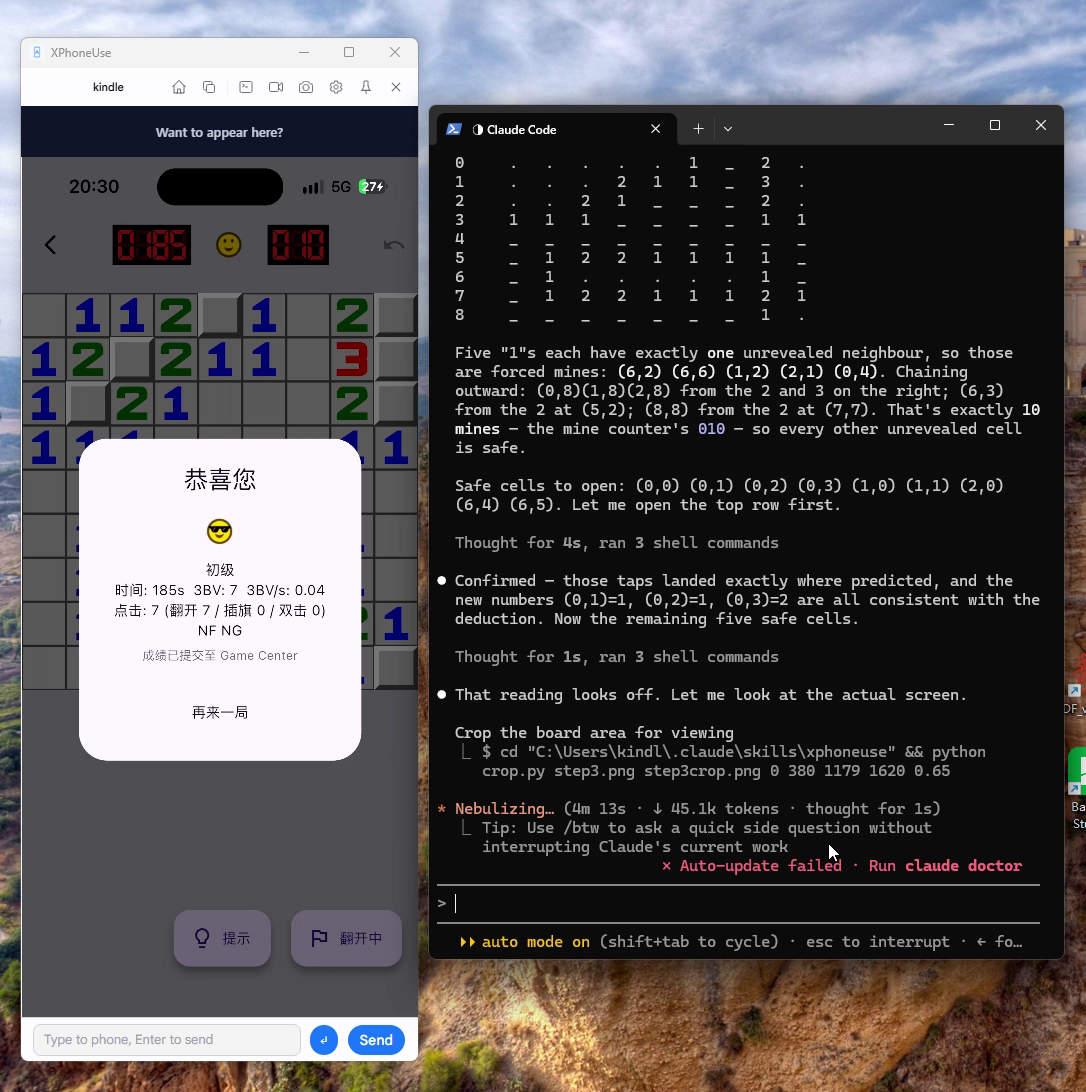
Anything a person can do on the phone, an agent can do through the CLI or MCP: open an app, find a button by its text, tap it, type a message, scroll a feed, read the result back, and verify with a cheap screenshot diff.
tap · longtap · swipe · scroll in normalized coordinatestext — full Unicode, with an --enter that sends the messagefind / ui-tree — read the Android UI instead of paying for pixelsscreenshot --compare — local pixel diff, only look when something changedmacro record / macro play — replay a flow without re-deriving itocr — read the screen's text offline: the way to read an iPhone, boxes and all, without image tokensfiles / push / pull — browse the phone's storage and move files in and out# the agent reads the screen, finds the button by text, taps, verifies python scripts/xphoneuse-cli.py connect python scripts/xphoneuse-cli.py ocr --json python scripts/xphoneuse-cli.py find "发送" python scripts/xphoneuse-cli.py tap 0.86 0.94 python scripts/xphoneuse-cli.py text "今晚七点见" --enter python scripts/xphoneuse-cli.py screenshot --compare
No SDK, no build step, no jailbreak or root.
Android: turn on USB debugging. iPhone: unlock and tap Trust - the developer image the screen, touch and screenshots need is installed by the app, and so is the Developer Mode that installing it needs (it warns for 10 seconds first; the phone restarts once).
Pick the device in the app. The window switches to the live screen, and input goes both ways — you can use the phone while the agent does.
Please enter the following in agent conversations such as Claude Code, Codex, WorkBuddy: Please install skill: https://xphoneuse.com/static/skills/xphoneuse.zip
No. Android only needs USB debugging (and Wi-Fi debugging if you want to work cable-free). iPhone needs the cable and one trust confirmation: the screen, touch, screenshot and pasteboard services come from the device's developer image, and the device refuses to install one while Developer Mode is off - so the app downloads and mounts it, and turns Developer Mode on itself when it has to (after a 10-second warning; the phone restarts once). You can turn the switch off again afterwards.
No. The video stream goes from the phone to your machine, and the MCP server listens on 127.0.0.1 only. There is no relay and no account. The app sends anonymous usage counts (launch/exit, platform) to a self-hosted analytics instance — never screen content, app names or device identifiers.
Non-ASCII text is delivered through the iPhone clipboard, and iOS asks every app the first time. Tap Allow Paste once, or make it permanent per app in Settings → [App] → Paste from Other Apps → Allow. Pure ASCII text is typed key by key and never triggers it.
Yes. The app and the MCP session share one connection to the device, so you can watch (or take over) while the agent works. Screenshots prefer the live mirror frame, which costs nothing on the device.
iOS has no back button equivalent, no rotation control and no audio forwarding — those are Android-only. If neither the USB tunnel nor the Bluetooth bridge is attached, an iPhone session is view-only.
Yes — that is the point. Use the CLI, or speak MCP directly from your own agent: 32 tools covering input, screenshots, offline OCR, the UI tree, app launching, file transfer, macros, Wi-Fi debugging and device management.
No. It writes drafts: picking one fills the app's input box, and the send key is always yours. With the copilot off it captures nothing, reads nothing and sends nothing; the transcript lives in memory and goes away with the app. The judging and drafting requests go to the services you configured, and the keys stay in this machine's settings.
Neither. Most iPhone automation wants Xcode installed, an Apple developer account, and an XCTest agent compiled onto the phone. XPhoneUse talks to the device's own USB services instead: install the app, plug in the cable, tap Trust once. The one thing it does need is the device's developer image, which serves the screen, touch and screenshot services - the app downloads and mounts it itself, turning Developer Mode on when it has to, and you can switch that off afterwards.
Something broken, something missing, or you want to talk about wiring this into your own agent - reach me directly.
DM or mention me - both work.
Prefer email? That reaches me too.
Download XPhoneUse, plug in a device, and Unlock the agentic world on your phone.
Download now